

Anyone who has run more than a handful of accounts through an anti-detect browser knows managing proxies in them can be a hassle. Without the right tools, proxy management turns into a spreadsheet of IPs, ports, and passwords that you copy and paste into browser profiles one at a time, hoping you don't mix up which proxy belongs to which account.
Key takeaways
- Incogniton pins a proxy to each browser profile and verifies the connection before launch, so proxy management stops depending on spreadsheets.
- Bulk import assigns an entire proxy list from a CSV in one pass, using the standard ip:port:username:password format.
- The new one-click rotation feature calls your provider's rotation API from inside Incogniton, with no detour through an external dashboard.
- VoidMob mobile proxies expose a rotation API URL you can paste straight into Incogniton to pull fresh carrier IPs on demand.
A profile launches, the proxy is dead, and now you're switching between your anti-detect browser and your proxy provider's dashboard just to figure out why. Multiply that across dozens or hundreds of profiles, and the "management" part of proxy management starts eating more time than the work you're actually trying to do.
Incogniton is one of the few anti-detect browsers that legitimately works hard to solve this problem. Instead of treating proxies as something you configure once and hope for the best, Incogniton gives you a full toolkit for assigning, testing, and rotating proxies without ever leaving the app. And as of its latest update, it added a one-click way to refresh mobile rotating proxies that removes one of the most repetitive tasks in the entire workflow.
Before we talk about this new tool, let's examine what tools Incogniton offers to help its users manage proxies effectively.
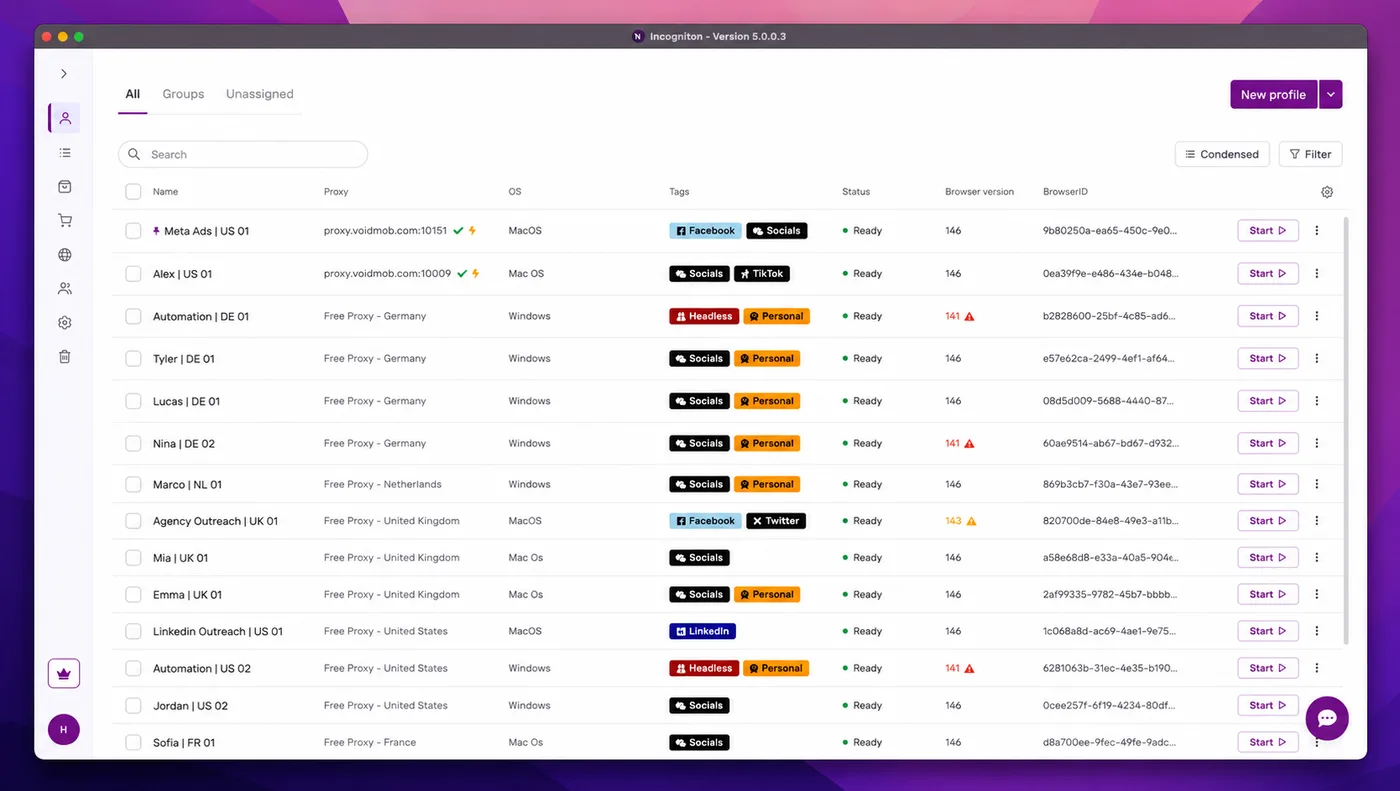
Incogniton's Proxy Management Toolkit
Every Incogniton profile carries its own proxy setting, and that proxy travels with the profile's cookies, browsing state, and fingerprint every time you reopen it. You are not reassigning proxies from memory or a separate tracking sheet each session; the pairing is saved once and persists.
On top of this basic feature, you have other features like the following:
Verification Before You Ever Hit Start
Before you commit a proxy to a profile, Incogniton checks the connection and gives a report you can cross-check against the promise of your proxy provider. Right at the configuration page, when you add a proxy to a profile, you will see the "Verify Proxy" button. Clicking this button triggers an internet speed and location test. Essentially, if a proxy is misconfigured, you find out during setup, not after a session has already failed halfway through.
Bulk Proxy Importer
When you're setting up dozens of profiles at once, adding proxies one by one isn't realistic. Incogniton's bulk import lets you paste a full proxy list, or load one directly from a CSV file, and assign the whole batch to a group in a single pass. Each entry follows the standard ip:port:username:password format, so moving a list from a spreadsheet into Incogniton takes minutes instead of hours.
Built-In Free Proxies for Quick Testing
For low-stakes tasks, like checking how a page renders in a different country or testing a new profile configuration, Incogniton includes free built-in proxies that activate with a single toggle. The proxies are datacenter proxies, and you use them for general private and anonymous browsing. So instead of the hassle of buying new proxies, you save time and cost to quickly do tasks that fit that use case.
Proxy Shop, for When You Need Something Fast
Incogniton also has an in-app Proxy Shop to buy residential, ISP, data center, or mobile IPs without leaving the dashboard. It's a convenient option when you need a proxy on short notice, but for dedicated infrastructure like real carrier-grade mobile IPs, most serious operators still prefer sourcing from a specialist provider and attaching those proxies to Incogniton manually, which the platform supports just as easily as we have explained above.
The One-Click Mobile Rotating Proxy: The Real Time-Saver
This is where Incogniton's proxy tools go from convenient to genuinely different, and it's the update worth paying the most attention to. The anti-detect browser's developers recently added this feature.
Refreshing a mobile rotating proxy has traditionally meant leaving your browser altogether: log into the proxy provider's dashboard, request a new IP, wait for it to assign, come back to your browser profile, and restart the session. Do that fifty times a day across multiple accounts, and the rotation process alone can burn through a meaningful chunk of your workday.
Incogniton's one-click rotation removes that detour. If your mobile proxy provider supports rotation through an API, you enter that rotation URL once when attaching the proxy, toggle on Rotating Proxy, and from then on, a new IP is triggered from inside Incogniton itself.
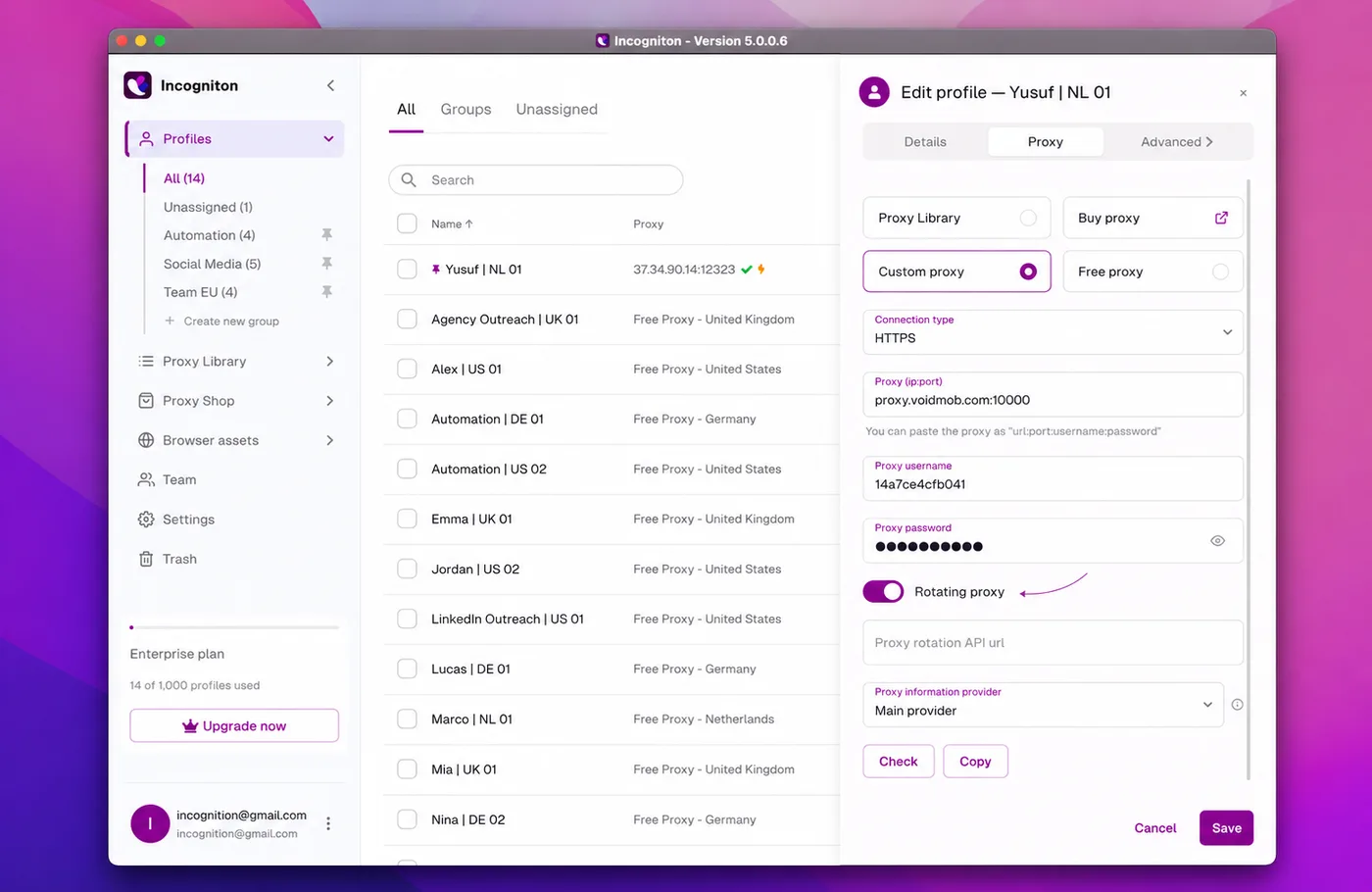
No external dashboard, no manual refresh, no need to restart the workflow to get back to where you were. You can always rotate the IP from the profiles list with a single click.
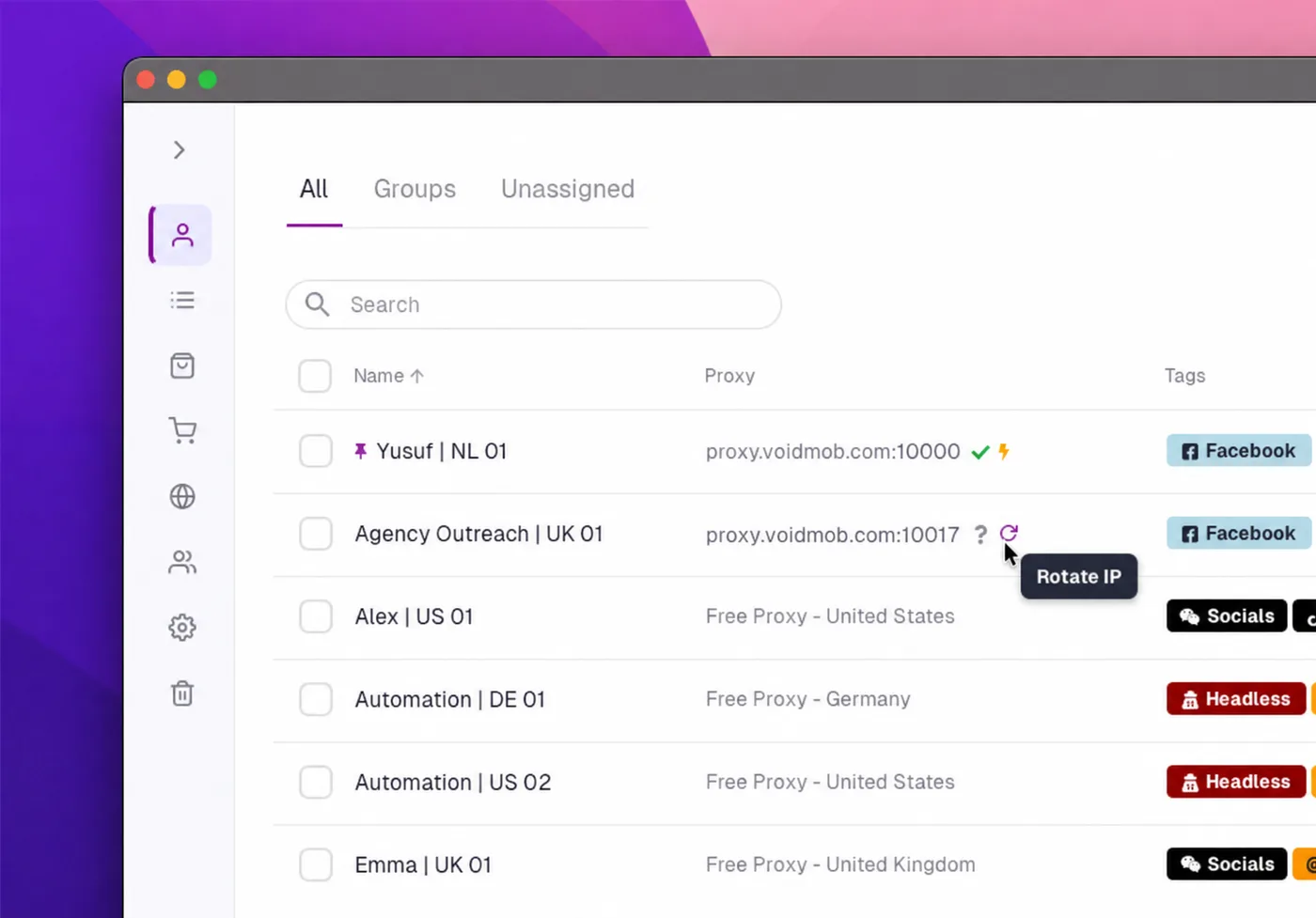
This makes the biggest difference for the tasks that depend on frequent IP changes: account warming across a large batch of profiles, verification flows that need a fresh IP per attempt, or any workflow where a stale IP gets flagged faster than you'd like. Instead of treating rotation as a separate maintenance task scheduled around your actual work, it becomes a normal part of moving between sessions.
For anyone running mobile proxies from VoidMob, this pairs naturally. VoidMob's mobile proxies run on real 4G/5G carrier infrastructure with rotation support built into their API, so you can plug that rotation endpoint straight into Incogniton and trigger fresh carrier IPs on demand, without breaking your session or your rhythm. Instead of IP rotation being a separate chore tucked away in another tab, it becomes part of the same click you're already making inside your normal workflow.
Setting It Up With a VoidMob Proxy
Here's what that looks like in practice:
-
Grab your proxy credentials and rotation API URL from your VoidMob dashboard.
-
In Incogniton, open the Proxy Library Menu from the left-side menu and click + New Proxy.
-
Select your connection type, HTTPS or SOCKS5, then enter the proxy address as ip:port, followed by your username and password. You can also paste the full string as ip:port:username:password and Incogniton will fill in the fields automatically.
-
Assign the proxy to a group if you want it organised alongside related profiles.
-
Toggle on Rotating Proxy and paste in your VoidMob rotation API URL. This is the piece that lets Incogniton call for a new IP without you ever opening VoidMob's dashboard.
-
Click Check to confirm the connection, then Add to save it to your Proxy Library.
-
Open the profile you want to use it on, go to the Proxy tab, select Proxy Library, and choose the proxy you just added.
From that point on, rotating the IP is a click inside Incogniton itself, not a detour through another tab.
Pair Incogniton With Real Carrier IPs
VoidMob dedicated mobile proxies run on real 4G/5G SIM infrastructure with API rotation built in. Paste the rotation URL into Incogniton and refresh IPs in one click.
Conclusion
Proxy management inside an anti-detect browser is either the thing that makes your workflow reliable or the thing that quietly drains your day, and the difference comes down to the tools sitting behind it.
Incogniton's proxy suite, from per-profile assignment and bulk import to built-in verification and one-click mobile rotation, handles the repetitive parts so you can focus on the accounts themselves rather than the plumbing behind them. Paired with dependable mobile proxies from a provider like VoidMob, that setup stops being maintenance work and starts being infrastructure you can actually rely on, session after session.